
Setup SCIM on Microsoft Entra
The following guide outlines how to setup SCIM for SSO on Microsoft Entra (Formerly Azure AD).
Setup SCIM for your Entra application
Vouch supports SCIM as a way of informing your Vouch account when employees have left your business, allowing you to manage any content in your account associated.
Vouch recommends enabling SCIM provisioning on your Audience Users application. Steps for setting up both SCIM provisioning are listed below:
Configure automatic provisioning
The first step in the process is to enable provisioning on your Azure SAML application. Navigation to Enterprise Applications in the Azure Active Directory Admin Center menu and select the SAML application that you configured for the Vouch Audiences.
From within the application, click on the Provisioning tab and click on the Create Configuration.
From the screen populate the following:
- Provisioning Mode : Automatic
- Authentication Method: Bearer Authentication
- Tenant URL : https://scim.vouchfor.com
- Secret Token : The Bearer Token will be provided by your Vouch Customer Success Manager
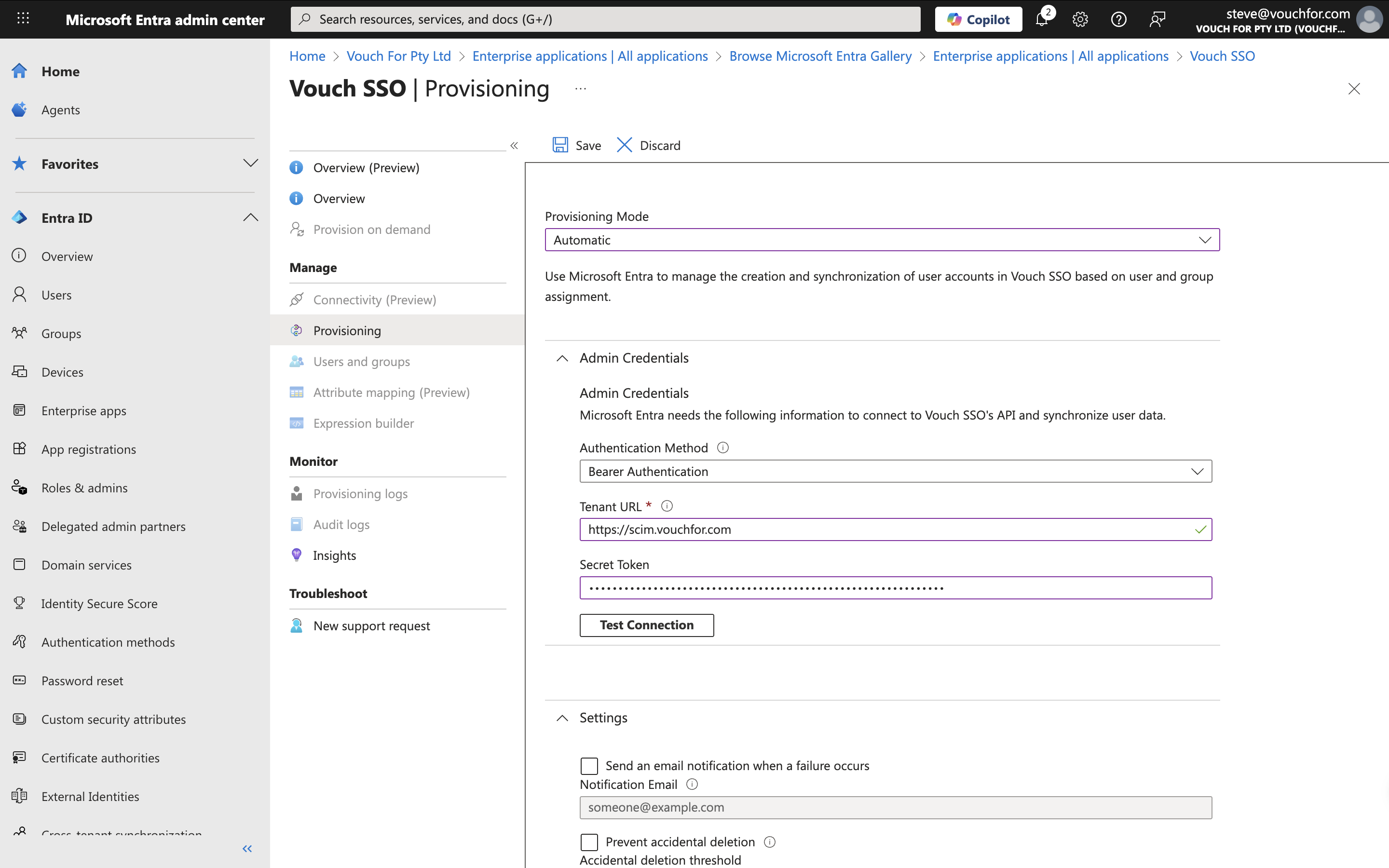
Once you have populated these fields you can test the connection and
Attribute mapping
Next click on Attribute Mapping from the menu to review the mapping between Vouch and Azure.
You will need to configure the following attributes:
| Claim Name | Type | Value |
|---|---|---|
| Unique User Identifier (Name ID) | Required | user.mail |
| http://schemas.xmlsoap.org/ws/2005/05/identity/claims/emailaddress | Optional | user.mail |
| http://schemas.xmlsoap.org/ws/2005/05/identity/claims/name | Optional | user.name |
| http://schemas.xmlsoap.org/ws/2005/05/identity/claims/title | Optional | user.jobtitle |
Next you can set the Target Object Actions
From the options presented, you will need enable the following actions:
- Create user
- Delete user
Once you are happy with the configuration, you can hit Save.
Updated 8 months ago